Tuesday, March 5, 2019

Move Azure AD Connect database from SQL Server Express to SQL Server

This document describes to move the Azure AD Connect database from the local SQL Server Express server to a remote SQL Server.

About this scenario

Following is some brief information about this scenario. In this scenario, Azure AD Connect version (1.1.819.0) is installed on a single Windows Server 2016 domain controller. It is using the built-in SQL Server 2012 Express Edition for its database. The database will be moved to a SQL Server 2017 server.


Move the Azure AD Connect database

Use the following steps to move the Azure AD Connect database to a remote SQL Server.
1.      On the Azure AD Connect server, go to Services and stop the Microsoft Azure AD Sync service.
2.      Locate the %Program Files%\Microsoft Azure AD Sync/Data/ folder and copy the ADSync.mdfand ADSync_log.ldf files to the remote SQL Server.
3.      Restart the Microsoft Azure AD Sync service on the Azure AD Connect server.
4.      Un-install Azure AD Connect by going to Control Panel - - Programs - Programs and Features. Select Microsoft Azure AD Connect and click uninstall at the top.
5.      On the remote SQL server, open SQL Server Management Studio.
6.      On Databases, right-click and select Attach.
7. On the Attach Databases screen, click Add and navigate to the ADSync.mdf file. Click OK.

8.        Once the database is attached, go back to the Azure AD Connect server and install Azure AD Connect.
9.     Once the MSI installation completes, the Azure AD Connect wizard starts with the Express mode setup. Close the screen by clicking the Exit icon. 


10. Start a new command prompt or PowerShell session. Navigate to folder \program files\Microsoft Azure AD Connect. Run command .\AzureADConnect.exe /useexistingdatabase to start the Azure AD Connect wizard in “Use existing database” setup mode.
11. You are greeted with the Welcome to Azure AD Connect screen. Once you agree to the license terms and privacy notice, click Continue.


12. On the Install required components screen, the Use an existing SQL Server option is enabled. Specify the name of the SQL server that is hosting the ADSync database. If the SQL engine instance used to host the ADSync database is not the default instance on the SQL server, you must specify the SQL engine instance name. Further, if SQL browsing is not enabled, you must also specify the SQL engine instance port number. For example:


13. On the Connect to Azure AD screen, you must provide the credentials of a global admin of your Azure AD directory. The recommendation is to use an account in the default onmicrosoft.com domain. This account is only used to create a service account in Azure AD and is not used after the wizard has completed.


14. On the Connect your directories screen, the existing AD forest configured for directory synchronization is listed with a red cross icon beside it. To synchronize changes from an on-premises AD forest, an AD DS account is required. The Azure AD Connect wizard is unable to retrieve the credentials of the AD DS account stored in the ADSync database because the credentials are encrypted and can only be decrypted by the previous Azure AD Connect server. Click Change Credentials to specify the AD DS account for the AD forest.


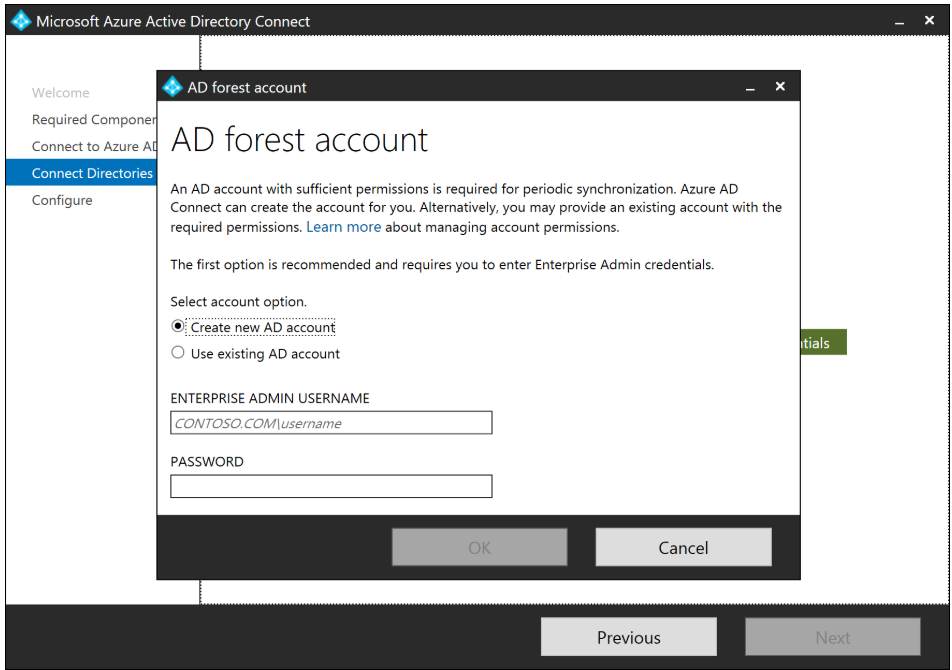
15. In the pop-up dialog, you can either (i) provide an Enterprise Admin credential and let Azure AD Connect create the AD DS account for you, or (ii) create the AD DS account yourself and provide its credential to Azure AD Connect. Once you have selected an option and provide the necessary credentials, click OK to close the pop-up dialog.

16. Once the credentials are provided, the red cross icon is replaced with a green tick icon. Click Next.


17. On the Ready to configure screen, click Install.


18. Once installation completes, the Azure AD Connect server is automatically enabled for Staging Mode. It is recommended that you review the server configuration and pending exports for unexpected changes before disabling Staging Mode

Friday, January 4, 2019

Exchange Multi-Forest Hybrid Tips and Tricks

Setting up Exchange hybrid between Office 365 and on-premises is a common and well-understood configuration.

Multiple forests, each with their own hybrid connection into a single Office 365 tenant, is supported from Exchange 2010 to 2019, although it does come with a unique set of challenges. This article assumes you have one Exchange organisation in hybrid and multiple Active Directory Domains synchronizing using Azure AD Connect already and are looking to add more Exchange Forests.

Office 365 tenant with two hybrid email forests

Key Considerations with Multi-Forest Exchange Hybrid

The basics still need to be in place for additional Exchange hybrid deployments. Azure Active Directory (AD) needs to successfully sync all users to the cloud (one per tenant, regardless of how many AD forests), Sender Policy Framework (SPF) and Domain-based Message Authentication. Reporting & Conformance (DMARC) also needs to be configured correctly, and the Simple Mail Transfer Protocol (SMTP), Embedded Web Server (EWS), and Autodiscover on-premises endpoints need to be exposed properly.

We should also take care to ensure that all Autodiscover endpoints work for all – internal name resolution allows connections through internal firewalls and if Service (SRV) records are in use then Outlook Autodiscover prompts are suppressed.

Hybrid Configuration Wizard
Setting subsequent Exchange organisations into Federation can be achieved by the normal Hybrid Configuration Wizard (HCW)

Centralised Mail Routing
Centralised mail routing is Microsoft’s term for sending outgoing emails via your on-prem environment. If this is present, or you wish your newly joined Exchange forest to perform centralised mail routing, then it’s necessary to take care to avoid unexpected mail routing. centralised mail routing and deliver email straight from Office 365 via the implicit deliver-via-MX-resolution route.

Don't enable centralised mail

Organization Configuration Transfer
In the Hybrid Configuration wizard, there is an option to perform an ‘Organization Configuration Transfer’ which copies certain configurations like retention policies tags.
Consider carefully before enabling organisation configuration transfer
Routing address
As part of the Hybrid Configuration wizard, your Exchange Address Policy generation default rule will be updated to include an Office365 routing address:

Use Email address from Company A in Company B
Once Exchange organisations are hybrid-enabled into the same tenant, it is possible for a user to have an email address based from another forest in the environment.


Thursday, November 22, 2018

Skype for Business Server 2019

  New features in Skype for Business Server 2019 include the following:
  Cloud Voicemail support enables all your Skype for Business 2019 users—whether they are homed on premises or online—to have access to Cloud Voicemail.

Cloud Call Data Connector greatly simplifies call monitoring in a hybrid environment by using online tools to monitor users call quality.

Streamlined Teams Migration allows administrators to easily move on-premises to Teams with a simple Admin experience.

TLS 1.2 support now enabled for improved security.

Added support for Windows Server 2019 and continued support for Windows Server 2016.

Features deprecated in Skype for Business Server 2019


The following features and functionality have been deprecated in Skype for Business Server 2019.

XMPP Gateways for Skype for Business Server

Skype for Business Server 2015 and its predecessors allowed you to configure an Extensible Messaging and Presence Protocol (XMPP) proxy on the Edge Server and an XMPP Gateway on the Front End Server or Front End pool. This functionality is no longer available in Skype for Business Server 2019.

Persistent Chat for Skype for Business Server

Persistent Chat Server is an optional role that lets multiple users in your organization participate in chat room conversations that persist over time. Persistent chat can't be deployed with Skype for Business Server 2019. This server role is removed from Topology Builder, as well as from the code.

SQL Mirroring for Skype for Business Server

SQL Mirroring can't be deployed with Skype for Business Server 2019. Other options for providing High Availability and Disaster Recovery are still supported and you should choose from among them.

In-place upgrades

In-place upgrades were available in Skype for Business Server 2015 but are no longer supported in Skype for Business Server 2019. Side by side upgrade and coexistance is supported, see Migration to Skype for BusinessServer 2019 for more information.

Mobility Service (Mcx)

Mobility Service support used by legacy mobile clients is no longer available in Skype for Business Server 2019. This was previously announced in Skype for Business Server 2015.
All current Skype for Business mobile clients already use Unified Communications Web API (UCWA) to support instant messaging (IM), presence, and contacts. Users with legacy clients using Mcx will need to upgrade to a current client.

Tools

The following tools will not be available for use at the initial release of Skype for Business Server 2019:
·        Skype for Business Server Capacity Planning Calculator
·        Skype for Business Server Debugging Tools
·        Skype for Business Server Resource Kit Tools (some tools will be removed)
o   Call Parkometer
o   Lookup user console
o   Unassigned number Announcement Migration
The following tools are not supported with Skype for Business Server 2019:
·        Call Quality Methodology (but not Call Quality Dashboard)
·        Microsoft Call Quality Methodology Scorecard, v1.5
·        Skype for Business Server 2015 Planning Tool
·        Skype for Business Server 2015 Stress and Performance Tool

Saturday, November 17, 2018

MICROSOFT EXCHANGE SERVER 2019


Microsoft Exchange Server 2019 has a long list of new enhanced features to improve the business user experience and security of the infrastructure. Some of the features that we all were waiting are here now with Exchange Server 2019 Like:
§  Support for Windows Server Core: Finally, It’s the time to plan and implement Exchange Server on Windows Server Core. Currently Exchange Server 2019 is only supported to deployed on Windows Server 2016 or 2019.
§  Performance Improvement: Exchange Server 2019 also support high end compute resource to better server your performance requirements. Exchange Server 2019 can support 48 CPO cores with 256 GB memory. It’s a huge improvement as compared to previous maximum server configuration support from 24 CPU cores and 192GB memory in Exchange 2013 and 2016 Server. Microsoft Exchange 2019 Server is now going to leverage Bing technology to provide fast and reliable search capabilities. This will be a very interesting feature from database fail-over perspective for enhanced performance and i’m looking forward to it. With Exchange Server 2019, index data will be stored inside the database instead of separate files located in the same folder as of database.
§  Calendar Improvements: Exchange Server 2019 is set to bring some of the cool calendaring features from Exchange online to on-premises that includes simplified calendar sharing, restricting the recipient ability to forward meeting invites etc.This feature would help the business users to restrict unwanted attendees to their meeting.
Want to know more? Check out this page on all Wave 2019 products. This year Ignite will be focused around Exchange Server 2019 launch from a messaging platform perspective. I’m looking forward to see all new upcoming features and announcements for Exchange Server 2019. From my perspective, Exchange Server 2019 release indicates Microsoft’s commitment towards on-premises version of the product to ensure they’re covering all type of business needs for a customer.

Thursday, November 15, 2018

Azure Active Directory Seamless Single Sign-On

What is Azure Active Directory Seamless Single Sign-On?

Azure Active Directory Seamless Single Sign-On (Azure AD Seamless SSO) automatically signs users in when they are on their corporate devices connected to your corporate network. When enabled, users don’t need to type in their passwords to sign in to Azure AD, and usually, even type in their usernames. This feature provides your users easy access to your cloud-based applications without needing any additional on-premises components.

Seamless SSO can be combined with either the Password Hash Synchronization or Pass-through Authenticationsign-in methods. Seamless SSO is not applicable to Active Directory Federation Services (ADFS).

Important
Seamless SSO needs the user's device to be domain-joined, but doesn't need for the device to be Azure AD Joined.

Deploy Seamless Single Sign-On


Azure Active Directory (Azure AD) Seamless Single Sign-On (Seamless SSO) automatically signs in users when they are on their corporate desktops that are connected to your corporate network. Seamless SSO provides your users with easy access to your cloud-based applications without needing any additional on-premises components. To deploy Seamless SSO, Follow the MSTechNet:

Read more on Microsoft docs:

Next steps

·        Quick Start - Get up and running Azure AD Seamless SSO.
·        Deployment Plan - Step-by-step deployment plan.
·        Technical Deep Dive - Understand how this feature works.
·        Frequently Asked Questions - Answers to frequently asked questions.
·        Troubleshoot - Learn how to resolve common issues with the feature.

Tuesday, November 13, 2018

Microsoft Teams Direct Routing


Office 365 can integrate with your existing directory services and with an on-premises installation of Exchange Server, Skype for Business Server 2015, or SharePoint Server 2013.

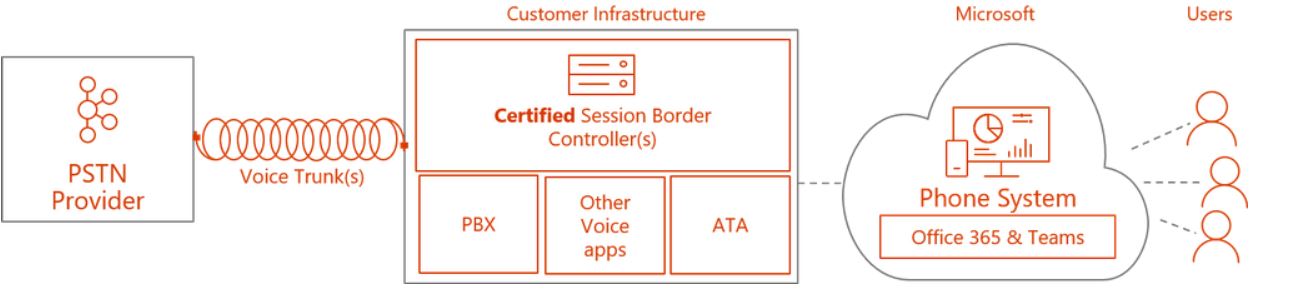
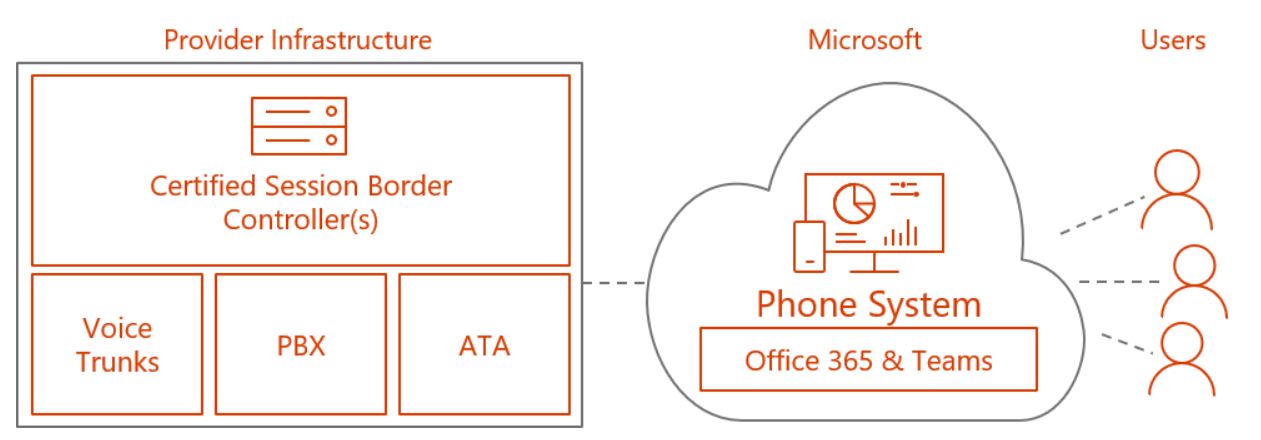
Direct Routing is a capability of Phone System in Office 365 to help customers connect their SIP trunks to Microsoft Teams. Session border controllers (SBCs) connect legacy systems and endpoints to Calling in Teams. Ribbon is one of only two vendors whose SBCs are certified to work with Direct Routing for Microsoft Teams. We offer a broad portfolio of solutions with session densities appropriate for small / branch offices to large carriers.

Direct Routing for Microsoft Teams!

Microsoft Phone System Direct Routing is now generally available. Direct Routing allows customers to choose their telecom provider to enable their users to make and receive calls in Teams. If your country is supported by Teams and Phone System you can start planning and deploying Direct Routing in your organization today. Direct Routing and Calling Plans are now your 2 choices for dial tone in Microsoft Teams.

Direct Routing is a Phone System add-on for Office 365 subscribers that lets organizations use their local phone service provider to make public switched telephone network (PSTN) phone calls. Phone System, formerly called "Cloud PBX," can be purchased separately, or it's offered as part of an Office 365 E5 subscription plan.

Organizations might opt to use Direct Routing if they want to stick with their phone service provider in enabling telephony and if they want manage the service on premises. Alternatively, Microsoft offers a Calling Plans Office 365 add-on option (formerly known as "PSTN Calling") in which Microsoft acts as the local phone service provider.

Direct Routing is a capability of Phone System in Office 365 to help customers connect their SIP trunks to Microsoft Teams. In the simplest deployment model, customers start with SIP trunks from their telecommunications provider. Next, customers will use and configure a supported Session Border Controller (SBC) from one of our certified partners. Microsoft's announcement listed two partners that offer certified SBCs for use with Direct Routing, namely AudioCodes and Ribbon. However, some of Microsoft's partners also offer so-called "hosted SBCs."

Direct Routing serves as a kind of telephony stepping stone for organizations using Microsoft Teams, which is Microsoft's workspace collaboration service. Microsoft Teams provides e-mail and chat for end users, but it also supports the ability to make phone calls through the client interface.
 Organizations also have the option to use Microsoft's Skype for Business unified communications solution to make phone calls, which can be used adjunctively with Microsoft Teams. However, Microsoft plans to replace the Skype for Business Online client with the Microsoft Teams client.
 It's clear that Microsoft wants to move its Office 365 customers over to using the Microsoft Teams client when making phone calls. Organizations now have the option to use Direct Routing or Calling Plans to add telephony to the Teams client if they want to move in that direction.

Coexistence with Existing Environment
https://www.audiocodes.com/solutions-products/products/products-for-microsoft-365/direct-routing-for-microsoft-teams


SBC to Microsoft Teams Direct Routing - Enterprise Model
https://www.audiocodes.com/media/13253/connecting-audiocodes-sbc-to-microsoft-teams-direct-routing-enterprise-model-configuration-note.pdf

SBC to Microsoft Teams Direct Routing - Hosting Model
https://www.audiocodes.com/media/13161/connecting-audiocodes-sbc-to-microsoft-teams-direct-routing-hosting-model-configuration-note.pdf

Plan Direct Routing
https://docs.microsoft.com/en-us/microsoftteams/direct-routing-plan

·        Infrastructure requirements
·        SBC domain names
·        Media traffic: port ranges
·        Supported SBCs

Configure a Session Border Controller for multiple tenants | Microsoft Docs